Create an architecture draft with AI
Generate a first architecture draft from a description and optional JPG or PNG. Learn how to review, refine, undo, and save C4, System Design, and Sequence diagrams.
1. Open a diagram and describe the system
Sign in with a confirmed account and open a C4 Architecture, System Design, or Sequence diagram. Choose AI Guided Draft from the left rail. On compact screens, open Modeling tools or More. Start in a new diagram when you want to keep an existing design.
Prepare your request
- Describe the responsibilities, boundaries, and interactions you want to model. Use the order-processing request below as a starting point.
- Choose the diagram focus. For this example, select Containers in C4, Event-driven system in System Design, or End-to-end hierarchy in Sequence. Add constraints under Additional instructions.
- Optionally attach one JPG or PNG, or paste an image from your clipboard, up to 5 MB and 16 megapixels. The combined text limit is 12,000 characters. Code repositories, URLs, PDFs, and multiple images are not supported inputs for built-in drafting.
Try this order-processing request
Model an online store. The storefront sends orders to an Orders API, which requests payment from an external payment provider and publishes order events. Fulfillment consumes those events. Show the relationships and keep the payment provider outside the store boundary.
2. Generate a fresh draft
Complete security verification, then choose Generate draft. Acefy screens the description and image, generates from the extracted architecture brief, and checks the output. Review the summary, assumptions, and generated AAL before choosing Apply draft. Applying replaces the current AAL and layout as one undoable change; it does not save the diagram.
To stop a pending request, choose Cancel and confirm cancellation. A cancelled or closed designer does not apply a late result. A completed server request can still count toward your allowance even if its result does not reach your browser.
3. Review and refine the architecture
Review the draft summary, up to five assumptions or design decisions, and the expandable AAL in the dialog. Choose Back to edit to revise your preserved inputs, or Discard to keep your current diagram. After Apply draft, the diagram and AAL are editable, including the assumption comments. The example below illustrates a possible result; your generated structure, names, and layout can differ.
Review before relying on the draft
- Check that the storefront, order service, event channel, and fulfillment belong within the store boundary, with the payment provider outside it.
- Check relationship direction and responsibilities: storefront to orders, orders to payments and events, then events to fulfillment.
- Read any assumptions and remove or correct invented technologies or requirements. Compiler validation checks supported language and model rules; it does not prove architectural correctness.
- In the C4 or System Design example, select Orders API, open Inspector, and rename it to Order service. Verify that the diagram and AAL both show the new name. Use Undo if you want to revert an edit or the draft replacement.
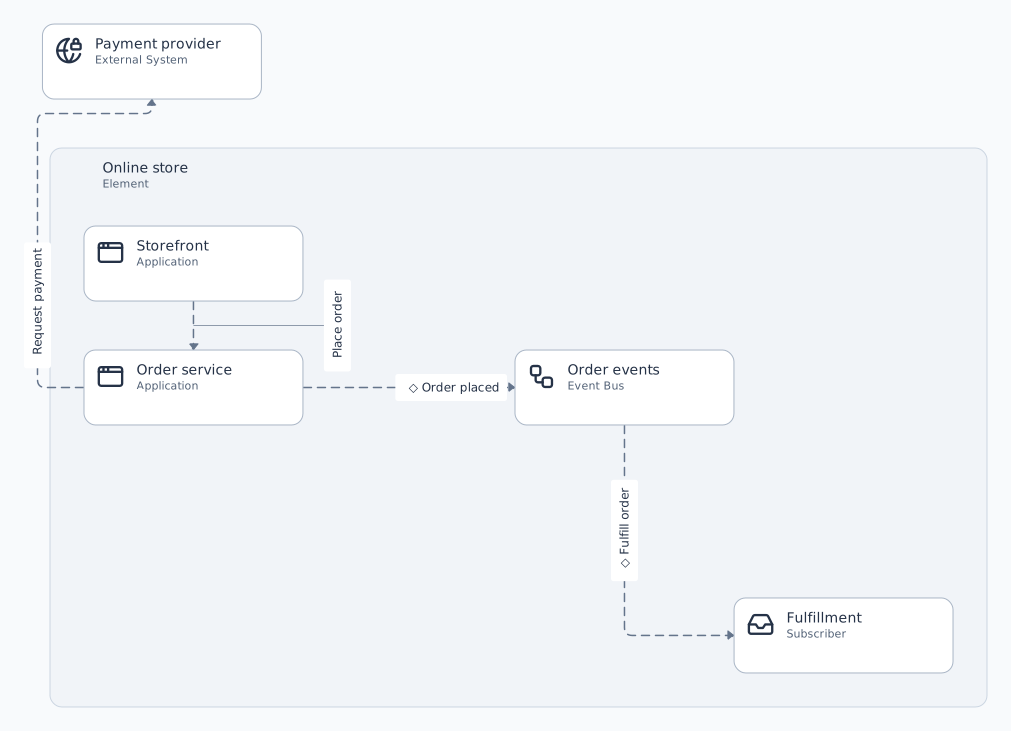
Illustrative result after renaming Orders API to Order service. These are separate capability examples, not an automatic conversion.
View and copy the complete System Design example
Reviewed order-processing example
aal system-design "0.2"
dictionary "0.2.0"
design Store "Order processing" {
  element Commerce "Online store" {
    element Storefront "Storefront" { type generic.application }
    element Orders "Order service" { type generic.application }
    element Events "Order events" { type generic.event_bus }
    element Fulfillment "Fulfillment" { type generic.subscriber }
  }
  element Payments "Payment provider" { type generic.external_system }
  relation PlaceOrder Storefront -> Orders request_response "Place order"
  relation Pay Orders -> Payments request_response "Request payment"
  relation Publish Orders -> Events publish "Order placed"
  relation Deliver Events -> Fulfillment deliver "Fulfill order"
}
4. Save and present
Keep the result
- Choose Save explicitly after reviewing your changes. Local saves stay in this browser; Cloud saves use your private cloud diagram. A local save is not a cloud backup.
- Use Present for a focused architecture discussion. Export SVG or PNG for a document, or a diagram file for an editable portable copy.
Allowances and troubleshooting
Each account can generate up to four successful drafts per UTC day, shared across all diagram types, projects, and devices. The dialog shows the remaining allowance and your local reset time. A completed validated draft counts when it is prepared for review, even if discarded. Screening rejections and failed attempts do not consume the successful-draft quota, but separate attempt limits and cooldowns apply.
When generation cannot complete
- If the service is unavailable or security verification cannot complete, continue with visual authoring, AAL, or an example. Follow the dialog’s retry guidance.
- Use architecture requests only and do not include credentials or private keys. Unrelated questions, private-instruction or secret extraction, and active attempts to override the assistant are rejected. Proposed designs can include clearly stated assumptions; requests to reconstruct existing systems must supply evidence. Security checks reduce risk but cannot prove factual correctness.
- If a request fails, your diagram remains unchanged. For an uncertain network result, refresh/check the allowance before trying again; a completed draft can count even when the response was lost.
- If your allowance is exhausted, wait until the displayed reset time. There is no automatic retry or recovery of a lost generated result.
Your inputs and the two AI workflows
Built-in drafting sends your submitted description, additional instructions, and optional image to OpenAI. Acefy does not store those inputs; provider retention policies apply. Your existing project is not transmitted. Generated AAL and its comments become project content when you explicitly save.
Use my AI assistant is a separate workflow: Getting Started prepares a prompt and matching language references for an external assistant you choose. That workflow can help you work with diagrams, codebases, notes, and mixed source material. You bring the returned AAL into Acefy yourself. The built-in generator does not access your repository or browse URLs.