Save, export, and present
Persist work, move project files, and present connected systems clearly.
AAL System Design 0.2 · Dictionary 0.2.0
Save and project transfer
Save keeps your editable work. Export a project for a portable backup, or export an image when you only need to share the diagram.
Choose the right output
| Action | What it keeps |
|---|---|
| Save | Source and durable visual settings at the project’s Local or Cloud destination. |
| Project export | Source and visual settings in a version-2 System Design project file. Import validates it before creating a project. |
| SVG / PNG | A diagram image, not an editable project backup. Choose a meaningful filename and inspect labels and routes after export. |
Presentation mode
Use Present to walk an audience through your system. It hides the editor, Inspector, editing toolbar, grid, minimap, connector handles, and resize controls.
Present the Orders flow
- Choose Present. Pan or zoom to Customer → Orders API.
- Use floating controls to choose a theme, canvas background, and Professional or Executive preset.
- Click an element name to inspect its read-only details. Close the popup with ×.
- Use Exit, or Escape when no dialog is open, to return to editing.
Choose a preset
| Preset | Result |
|---|---|
| Professional | Keeps infrastructure detail. |
| Executive | Reduces secondary metadata while retaining names, provider icons, containment, and connection meaning. |
Details and selection
- Details can show authored metadata, placement references, direct children, tags, and additional properties for an element or parent.
- The centered details popup dims the canvas, traps focus, and scrolls for long content. Escape and outside clicks leave it open.
- Selected boxes glow. A selected connector highlights with its endpoints; connections between explicitly selected boxes also highlight. Selecting one box alone does not highlight every incident line.
- Request and response remain separately selectable. These highlights are temporary and do not replace saved colors.
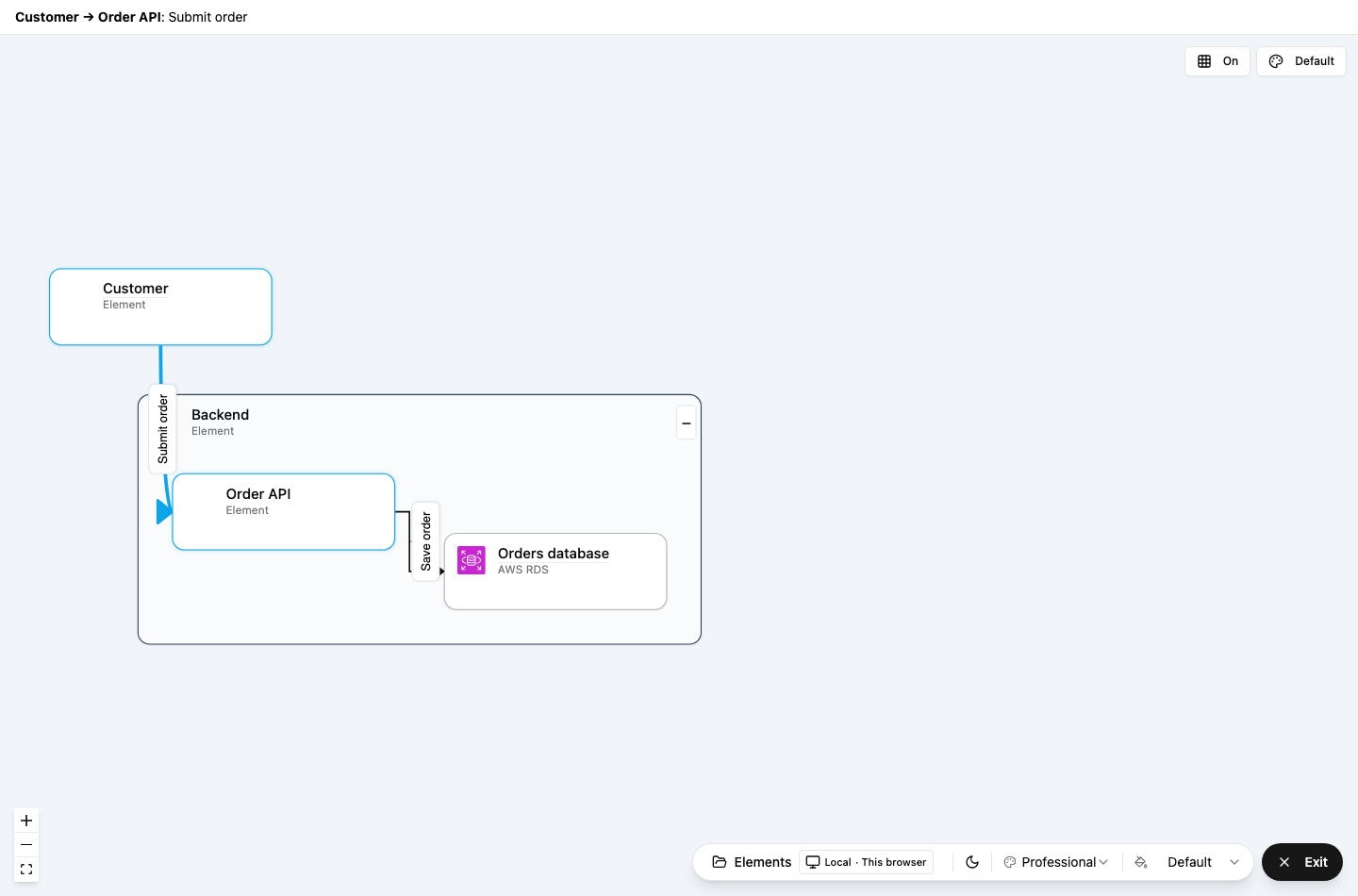
- Floating presentation controls replace editing toolbars and panels.
- Names, elements, and relationship meaning remain visible; selection emphasis is transient.
Select the screenshot to inspect it at full size.
Keyboard shortcuts and themes
Use these shortcuts while working on the canvas or in the source editor. Ctrl applies on Windows/Linux; Cmd applies on macOS.
Keyboard reference
| Shortcut | Action |
|---|---|
| Ctrl/Cmd+S | Save. |
| Ctrl/Cmd+Z | Undo. |
| Ctrl/Cmd+Shift+Z | Redo; also available through History. |
| Delete / Backspace | Remove selected canvas objects through validation. |
| Shift+Alt+F | Format System Design source. |
| Tab in source | Indent. |