Getting started with System Design
Create, connect, inspect, save, and reopen your first system diagram.
AAL System Design 0.2 · Dictionary 0.2.0
Create your first project
A project keeps your diagram and saved visual settings together. For this walkthrough, create a System Design project called Orders request flow.
Create the project
- Sign in and open Projects. Choose New project.
- Select System Design, choose a starting example, and enter Orders request flow as the name.
- Choose Local for this browser, or Cloud when available, then Create.
Choose a save location
| Location | What it means |
|---|---|
| Local | Stored in this browser and scoped to your signed-in account. A local save is not a cloud backup. |
| Cloud | Optional private cloud persistence. |
| Project export | An independent, portable copy of your editable project. |
Find the project again
- Projects shows each project once, with its type, location, and last modification time. Search and filters narrow the library.
- Open a project by its name. Use its Actions menu to rename, duplicate, clone, or delete with confirmation.
- Inside the designer, use Project to rename, switch projects, export, or open Documentation.
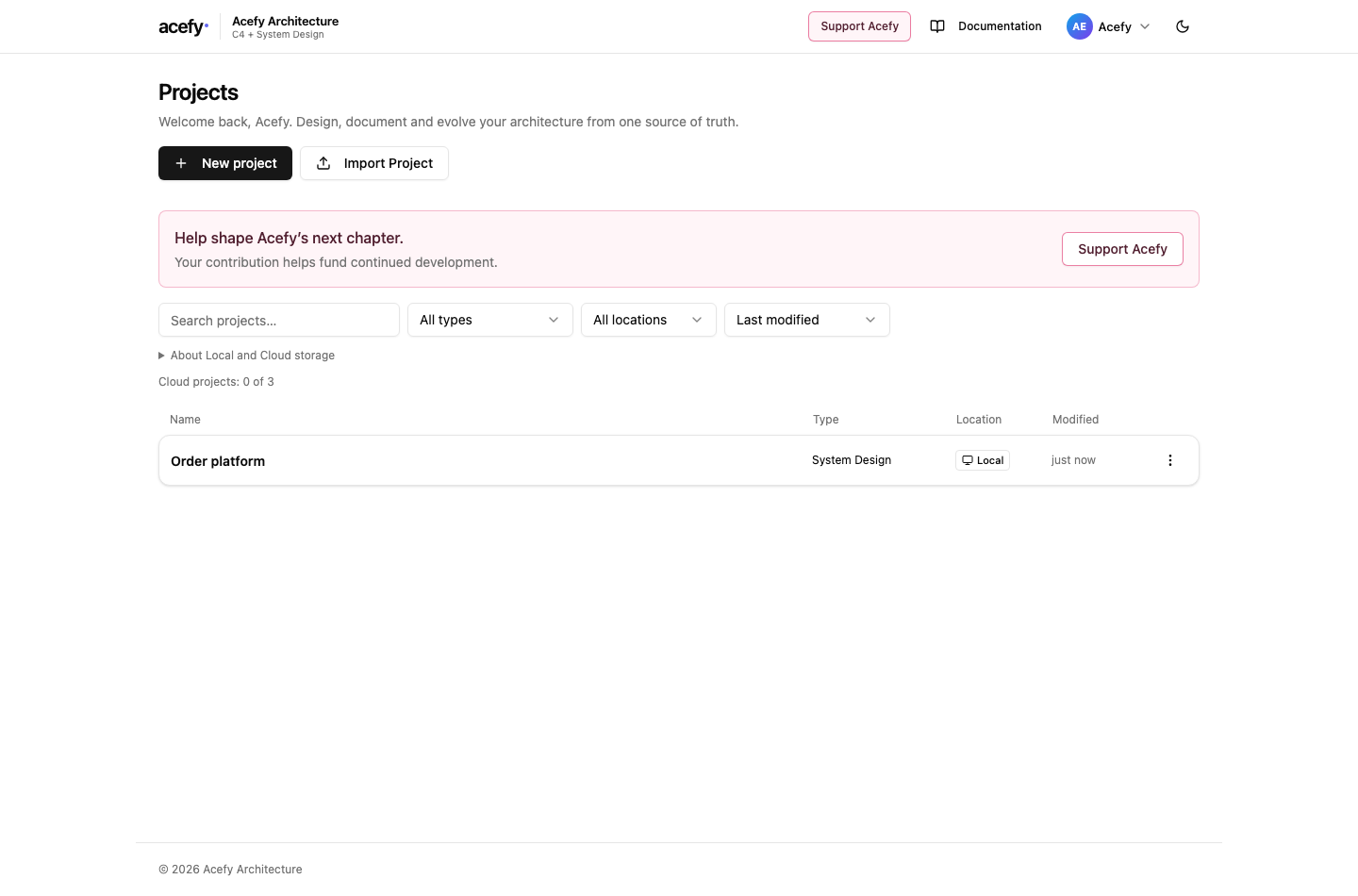
- New project chooses C4 or System Design and a save location.
- Search, type, location, and sort apply to the same library.
- Each project appears once; open its name or use its Actions menu.
Select the screenshot to inspect it at full size.
Build a small request flow
A element is something in your system. In our example, Customer sends a request to Orders API, represented by an AWS Lambda element. The arrow describes the direction of that request.
Build the request flow
- Choose Add element twice and name the elements Customer and Orders API. Draw a connector or use Connect elements. Choose an optional type later in Inspector.
- Select each box. In Essentials, name them Customer and Orders API. Commit the field.
- Drag from a handle on Customer to Orders API. This immediately creates a one-way connect relationship with an empty label. Select it to add an optional label or change its kind.
- Save the project. Reopen it from Projects to check your names and arrangement.
aal system-design "0.2"
dictionary "0.2.0"
design OrdersFlow "Orders request flow" {
  element Customer "Customer"
  element Api "Orders API"
  relation Request Customer -> Api connect "Submit order"
}
Work safely with source and canvas
Save explicitly when you want to keep your work. It stores the source and durable visual settings, including your arrangement.
Understand the editing state
- Unsaved means the current work has not been saved. Project navigation and Documentation offer Save, Discard, or Cancel when needed.
- If AAL is invalid, the editor keeps your text and the canvas keeps the last valid diagram. Read the diagnostics and repair the source before continuing model edits on the canvas.
- Undo and Redo recover supported authoring and visual changes. Export a project file for a separate recovery copy.
Optional: start with an external assistant
Attach the System Design AI instructions and resource dictionary from the downloads above to your external assistant. Describe your requirements, then copy its AAL into a new System Design project. Check diagnostics before saving.
Prepare a prompt for your AI assistant when you are starting from existing material.
Connected customer experience
Connect a customer portal, orders, CRM, and payments around one customer journey.
Application Integration · Beginner · Application Integration · Purposeful relationships · Stable resource IDs
aal system-design "0.2"
dictionary "0.2.0"
design Example "Connected customer experience" {
  element Customer "Customer" { type generic.customer }
  element Portal "Customer portal" { type generic.application }
  element Orders "Orders API" { type generic.application }
  element CRM "Customer CRM" { type generic.external_system }
  element Payments "Payments" { type generic.external_system }
  relation Flow1 Customer -> Portal connect "Uses"
  relation Flow2 Portal -> Orders request_response "Place order"
  relation Flow3 Orders -> CRM write "Update customer"
  relation Flow4 Orders -> Payments request_response "Take payment"
}
Try changing…
- Rename Customer while preserving its ID; its relationships remain connected.
- Change the label of Flow1; its semantic direction stays the same.
- Arrange the diagram and export it as SVG; visual changes stay outside AAL.