Relationships and styling
Control interaction meaning, attachments, manual routes, labels, and visual emphasis.
AAL System Design 0.2 · Dictionary 0.2.0
Model connection meaning
A relationship explains how two elements interact. Customer → Orders API is a request; an API publishing an event has a different meaning. Choose the interaction kind before styling the line.
Read a relationship
| Part | Meaning |
|---|---|
| ID | A stable identifier for this interaction. |
| Source → destination | The ordered endpoints. The gesture starts at the semantic source. |
| Kind and label | How the elements communicate and what the interaction does. |
| request_response | One interaction shown as two separately selectable request and response lines. |
| Publish / deliver | One-way event operations rather than a synchronous return path. |
Endpoint attachment sides
Attachment sides control where a connection meets each box. For Customer → Orders API, you might attach the request to the customer’s right side and the API’s left side.
Change an attachment
- Select the connection and find its endpoint controls.
- Choose Left, Right, Top, or Bottom independently for source and destination.
- Inspect the result; adjust the route separately if needed.
Manual connector routing and labels
Routing changes the path a line follows. Use it when a connection overlaps a box or another line. Dragging its label moves only the text.
Route an orthogonal line
- Select one orthogonal connector. Drag a horizontal segment vertically, or a vertical segment horizontally. Only adjacent segments adjust.
- Double-click a segment or choose Add bend to create a detour.
- Focus the raised detour segment to enable Remove bend when removal is safe. Use Reset route to return to automatic routing.
Keyboard and other line styles
- Arrow keys move orthogonal segment handles perpendicular to the segment. Escape cancels a drag. Corners stay subtly rounded.
- Bezier lines have one shape handle. Drag it in any direction or use arrow keys to adjust the S-curve while endpoints remain fixed. Reset curve restores the automatic shape.
- Straight lines have no routing handles until you choose another style.
Labels, groups, and saved routes
- Drag a label along the route. Use Appearance for label backgrounds, font colors, box backgrounds, and automatic path styles.
- Multi-selection applies supported styling to a group; reset restores defaults.
- Save and SVG, PNG, or project export include authored routes. Presentation shows them without editing handles.
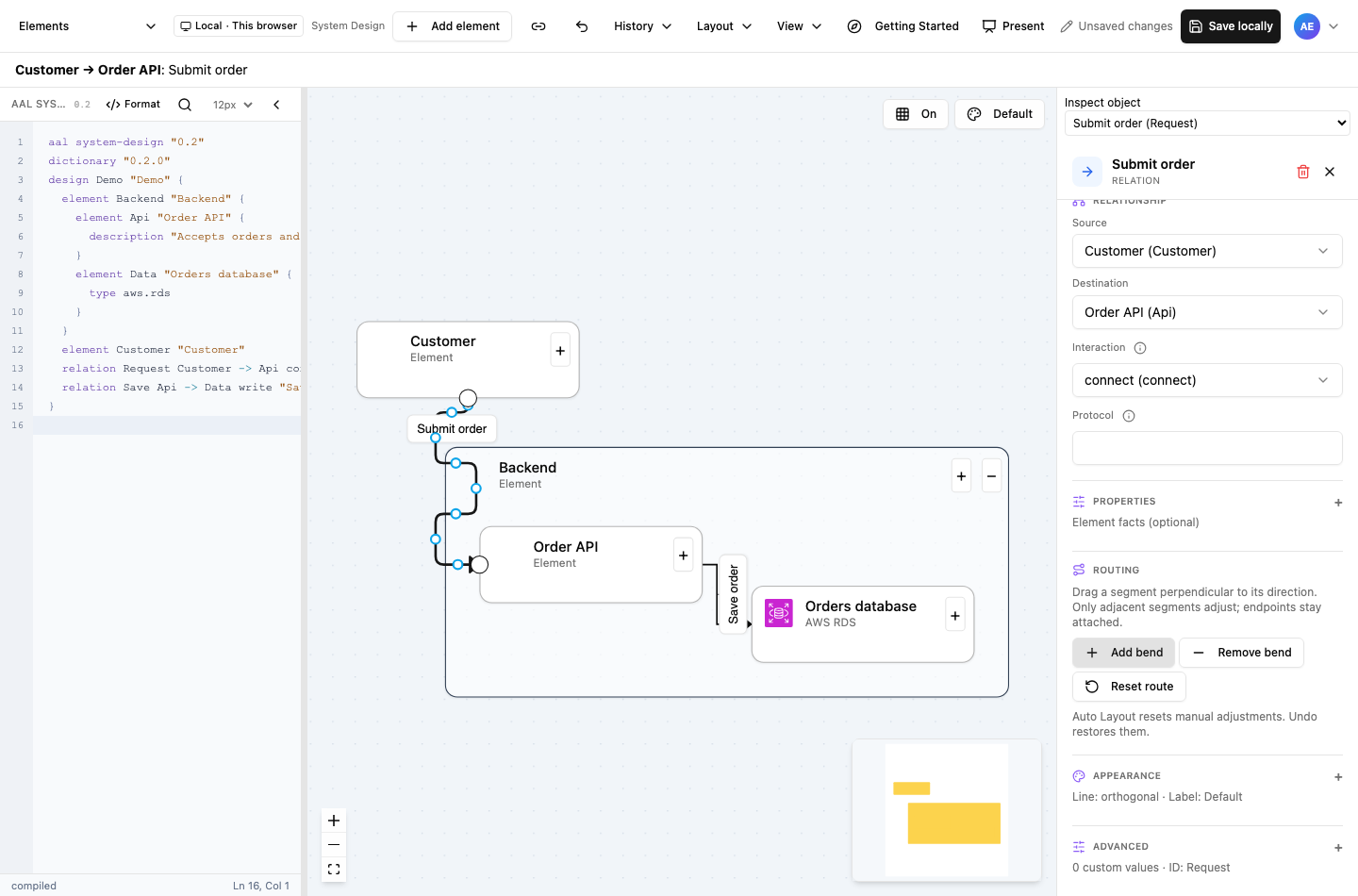
- Segment handles move perpendicular to the line. Endpoints stay attached.
- Routing provides Add bend, Remove bend, and Reset route. Labels remain independently draggable.
- Attachment sides are separate from line routing; changing the route does not change these settings.
Select the screenshot to inspect it at full size.
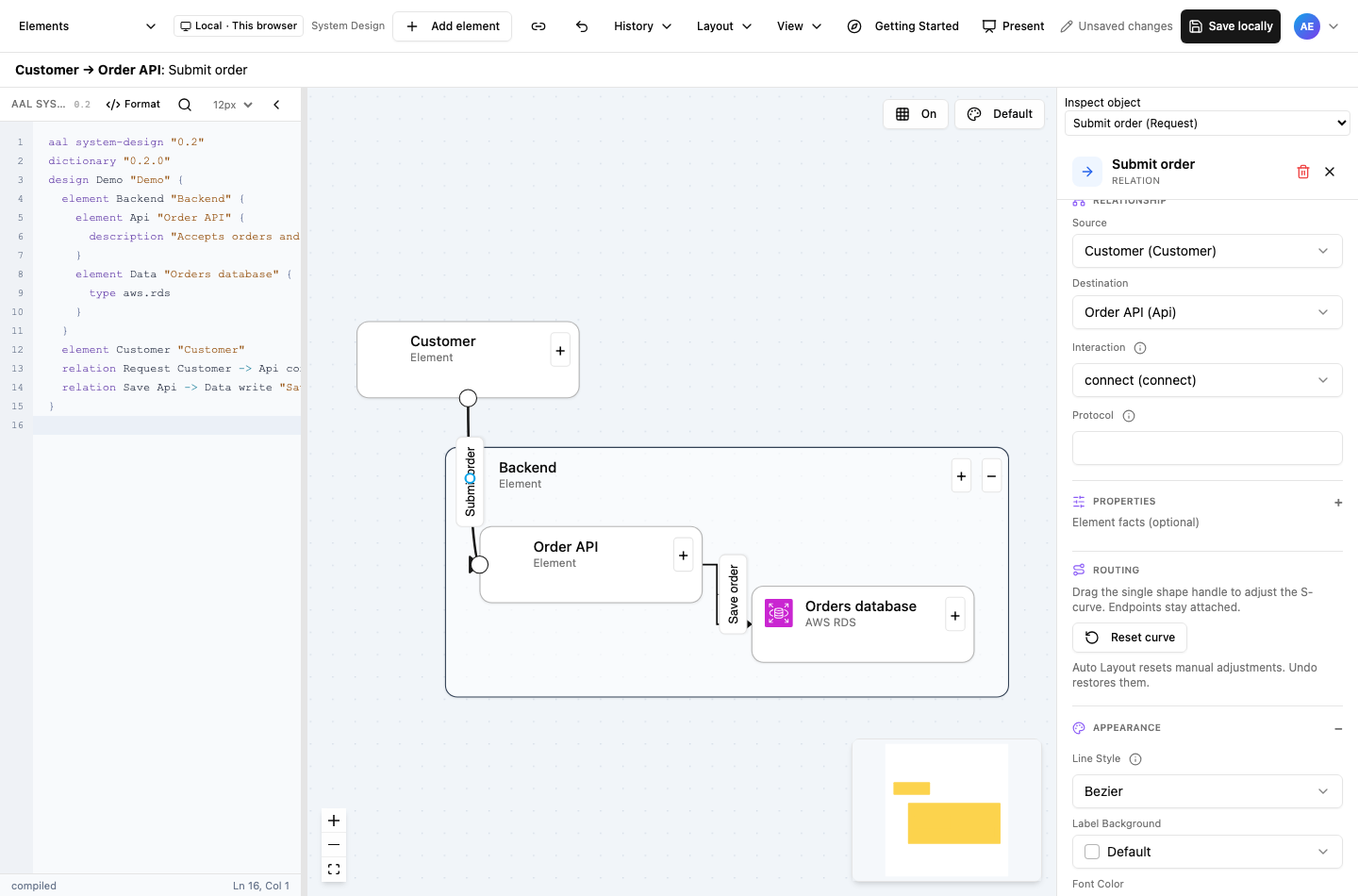
- Drag the single shape handle in any direction to reshape the S-curve; endpoints remain attached.
- Reset curve restores the automatic shape. Curve editing never creates orthogonal bends.
Select the screenshot to inspect it at full size.